Cara menginstal Tiny Finch
Ini adalah panduan singkat dan sederhana untuk menginstal live chat Tiny Finch di website-mu.
Masuk atau buat akun
Klik Mulai di atas untuk membuat akun Tiny Finch baru. Dengan begitu, trial gratis satu bulan akan dimulai. Tidak perlu kartu kredit. Daftar pakai email atau Slack dengan mengklik tombol Daftar dengan Slack.
Kalau kamu sudah punya akun, klik Masuk di atas. Kamu bisa login pakai email atau Slack.
Tambahkan tag skrip ke website
Setiap website dibuat dengan HTML. Halaman HTML adalah kumpulan tag seperti <div>, <h1> atau <p>.
Untuk menginstal Tiny Finch, letakkan tag HTML <script> ke bagian <head> website, yang berada di antara tag <head> dan </head>.
-
Setiap skrip dibuat khusus untuk akunmu. Jangan membagikannya di luar timmu.
-
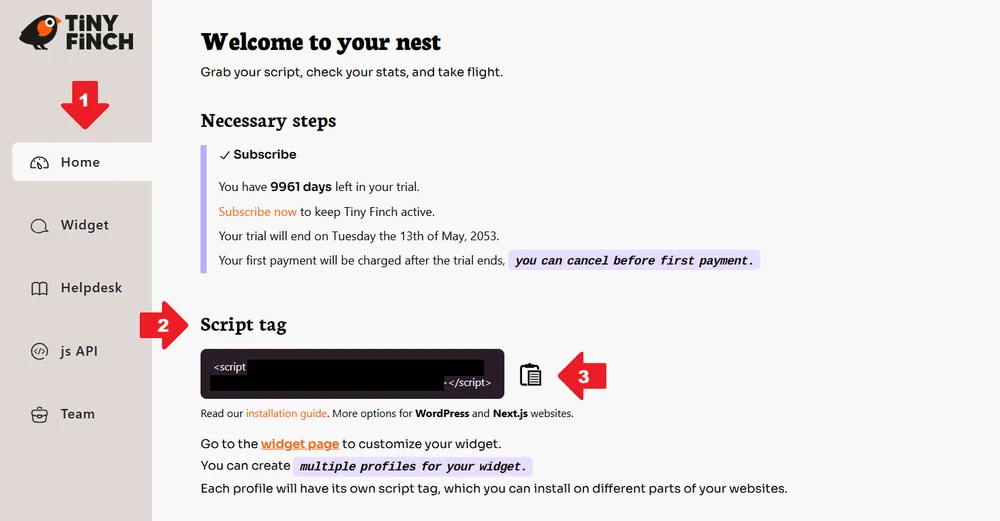
Skripnya ada di dasbor Tiny Finch (terpampang tepat setelah kamu login/mendaftar). Klik ikon papan klip untuk menyalinnya. Lihat tangkapan layar di bawah terkait langkah-langkahnya.
-
Bagian
<head>di website berisi metadata website, termasuk skrip dan stylesheet. Bagian ini adalah tempat yang pas untuk meletakkan Tiny Finch.
Kalau kamu tidak punya akses ke kode website, kirimkan skrip tersebut ke developer atau rekan timmu.
Website WordPress
Kalau website-mu menggunakan WordPress, instal plugin Tiny Finch Live Chat WordPress.
-
Buka halaman konfigurasi plugin.
-
Masukkan ID tim (bisa dilihat di dasbor: Team → Basic Info).
Tindakan ini akan otomatis menyambungkan widget ke akun Tiny Finch.
Website Next.js
Untuk situs Next.js, gunakan komponen Skrip Next.js, bukan tag <script>.
Baca dokumentasi Next.js yang berisi praktik-praktik terbaik.
Catatan tambahan
-
Kamu bisa meletakkan tag
<script>hanya di halaman tertentu. Widget akan muncul di halaman tempat tag tersebut berada. -
Kalau tag-nya diletakkan di semua halaman, kamu bisa mengontrol visibilitas widget melalui dasbor: Widget → URL white and blacklists.
-
Kalau error widget muncul di konsol browser, klik kanan pada website → Inspect → Console.
Akunmu harus aktif agar widgetnya muncul.
Akunmu aktif selama masa trial gratis satu bulan. Setelah itu, kamu perlu langganan.
Kalau mendaftarkan kartu kredit selama masa trial, kamu akan ditagih hanya di akhir masa trial.
Menghapus Tiny Finch
Kamu bisa menghapus akun kapan saja di Dasbor → My account & subscriptions. Widget akan langsung hilang.
Kami menyarankanmu menghapus tag <script> dari website, meskipun langkah ini tidak wajib. Widget ini dirancang agar tidak membuat loading website lambat.
Kami menerima masukan, hubungi kami!